Using the Homepage

Local EnteroBase Homepage (For a System Admin)
The homepage provides a means of access to all of Local EnteroBase’s functionalities. These require a Central Enterobase account to access, being marked with ‘lock’ icons to indicate inaccessibility if you are not signed in to the Central EnteroBase account.
If you have previously signed in with Central EnteroBase and navigate to any of the ‘locked’ functions, you will be automatically signed in and redirected to the respective webpage.
The homepage provides the ability to switch between a dark and a light theme using the icon in the top navigation bar next to the login buttons.
The following sections detail the log in process as well as provide an overview of the available Local EnteroBase functions. Further detail on their operations can be found within their individual user guide sections.
Logging In
The homepage provides 2 methods of logging in to Local EnteroBase: using the system administrator credentials that were set during installation of your Local EnteroBase or when you registered an account with Central EnteroBase at Warwick (Warwick EnteroBase). These can be accessed at the top of the navigation bar. The system will not allow you to be simultaneously signed in as both the system administrator and a Warwick EnteroBase user.
The homepage displays that you are signed in by displaying your account name with the Local EnteroBase name and logo on the left-hand side navigation drawer, as well as in the navigation bar in place of the sign in button.
System Administrator
Click the “System Admin Login” button, you will be redirected to the login form.
Enter the system administrator username and password and click the “Log In To Your Account” button. You will be signed in and redirected back to the homepage.
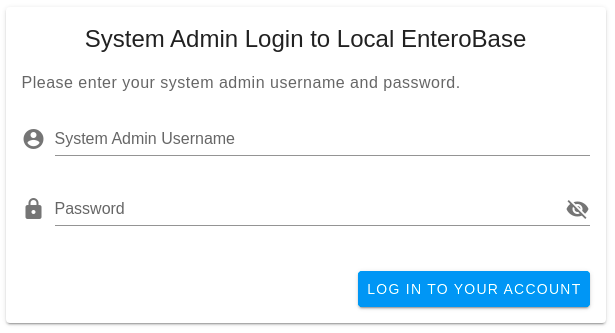
System Administrator Login Form
Warwick EnteroBase User
Click the “Warwick EnteroBase Login” button.
1a. If this is your first time logging in using the credentials, you will be redirected to the Warwick EnteroBase login page to authorise your Local EnteroBase. Go to step 2. 1b. Otherwise, you will be signed in automatically and redirected back to the homepage.
Enter your Central EnteroBase account credentials and click the “Log In” button
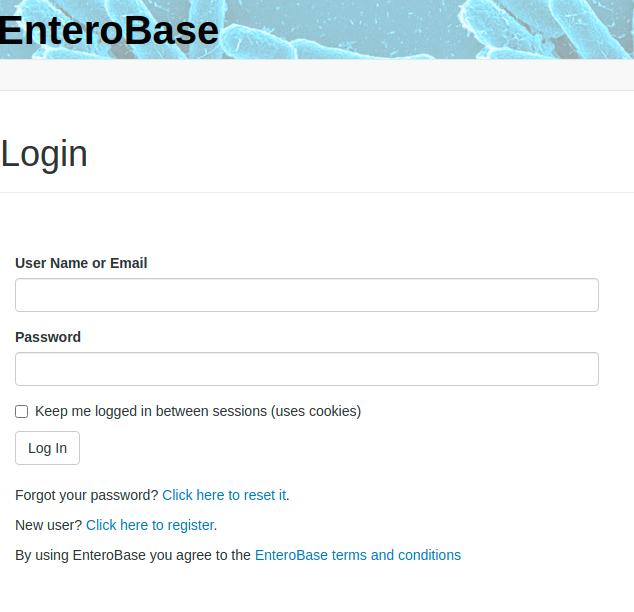
Warwick EnteroBase Login Form
Databases to Upload Strains
As demonstrated in figure 1, the available databases for the principal genera stored and analysed using EnteroBase are displayed on the homepage. If you know the strains you will intend to upload, you can select a specific genera database from those displayed to upload your strains and their metadata. Clicking on a database will redirect you to their respective strain submission webpage.
Your Jobs
When you submit strains to be assembled within Local EnteroBase, these processes are transformed into ‘jobs’ and queued to be operated on in the background with Celery. This webpage allows you to view the statuses of all submitted jobs, being ‘queued’ or ‘completed’ and providing further options to upload the results to Central EnteroBase and download the results.
Note: Accessing this page you to be signed into Local EnteroBase with your OAuth credentials.
News & Updates
This page displays significant recent changes or developments for Local EnteroBase.